 TieTie
From ⌘C to the right place.
TieTie is a clipboard manager built for macOS, and the steps in between are what it handles: where a clip goes, how you find it again, what it looks like, and which key sends it out. This page walks through all of them.
It understands what you copied.
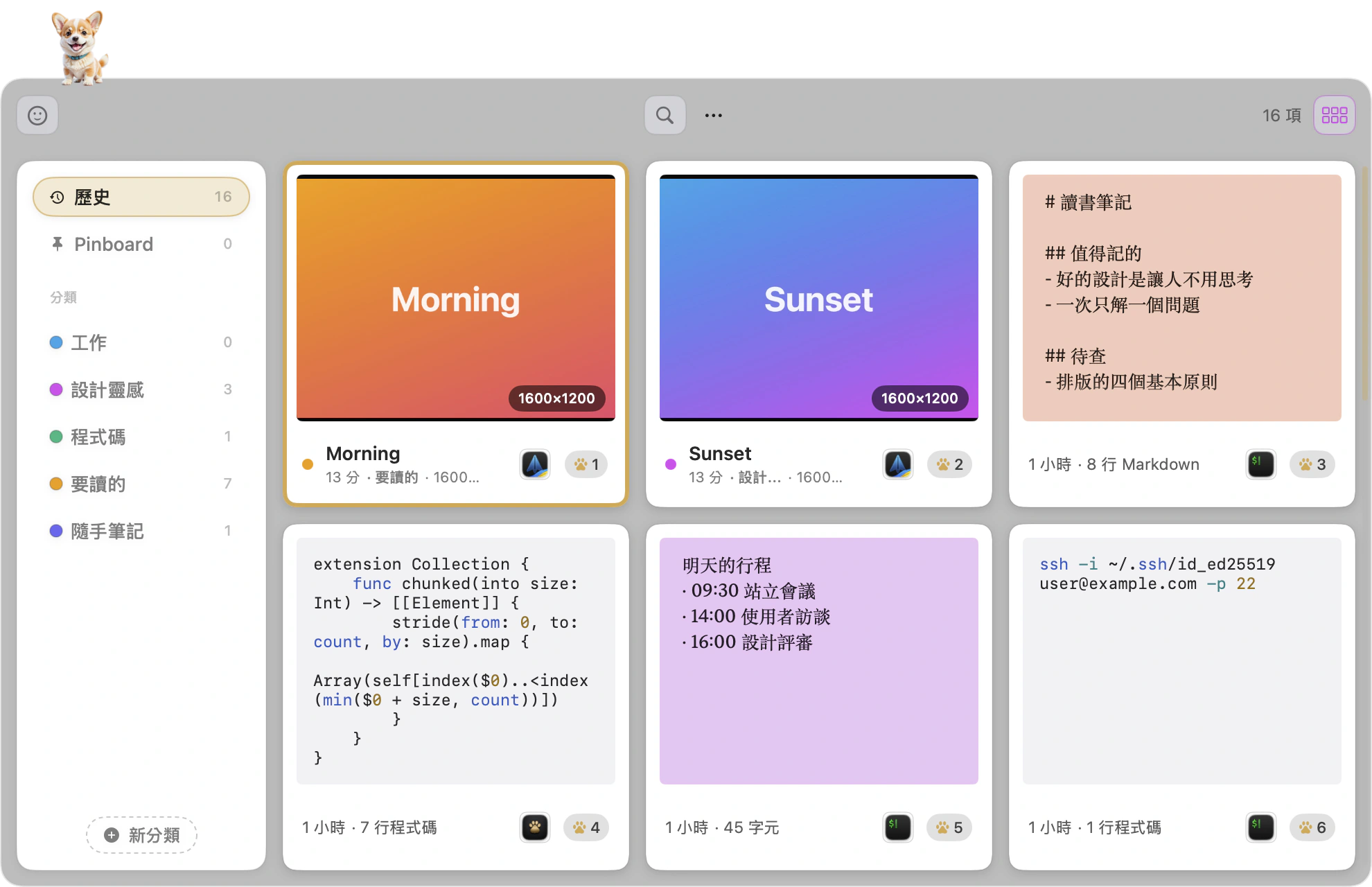
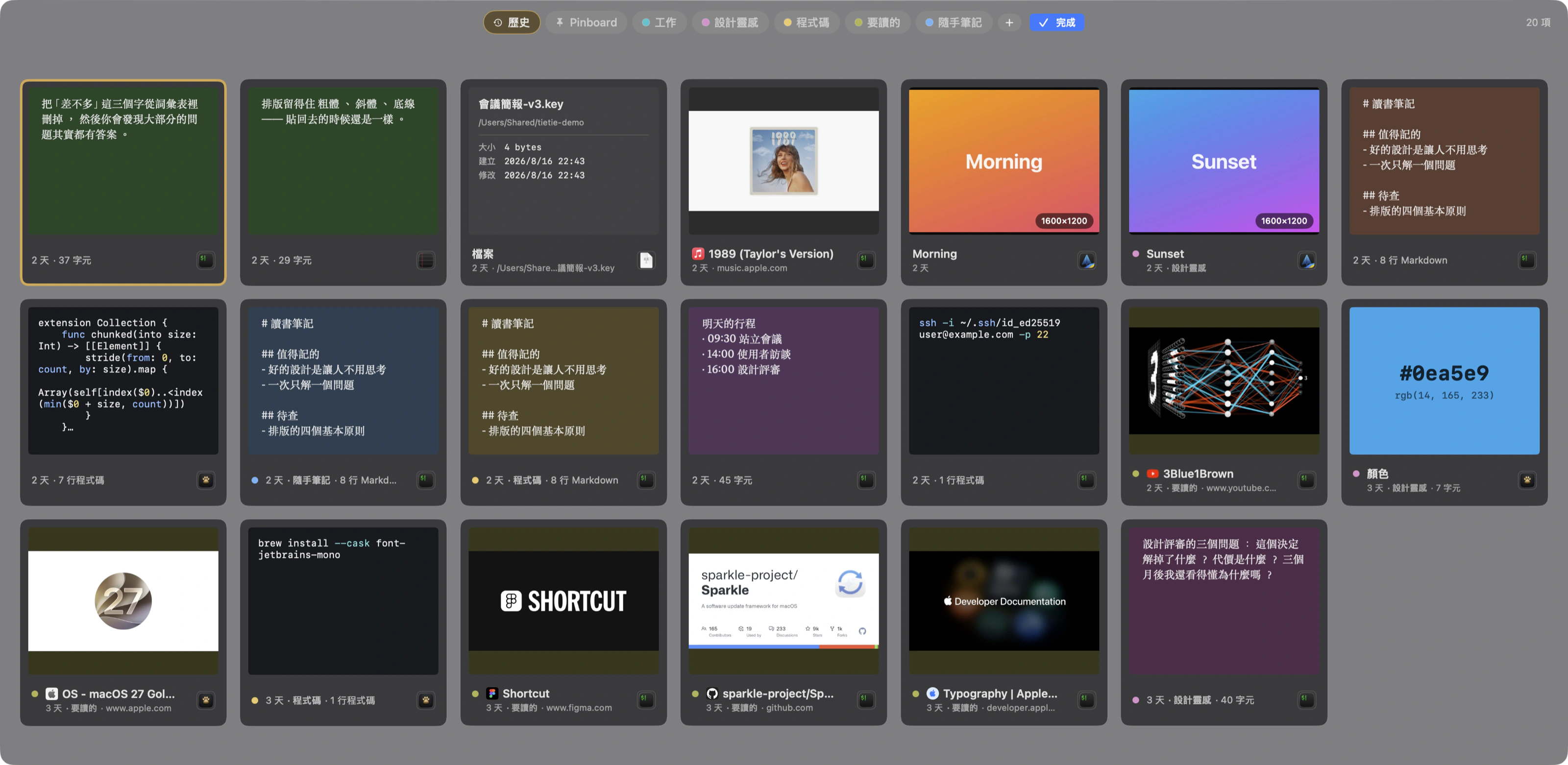
Not everything gets flattened into a text list. TieTie stores five types, and inside one type it still recognizes the content: a piece of text can be code, a color value or a song, and each one gets its own card (the strip on the home page shows eight examples).
| Type | What happens to it |
|---|---|
| Text | Becomes a sticky note in one of eight colors. The same clip always gets the same color, so you end up remembering where things are by color. If it looks like code, it switches to a terminal look, with comments, strings, flags, numbers and keywords each in their own color. |
| Link | Fetches the page title, favicon and preview image in the background. YouTube links pull the official thumbnail. This is the one capture feature that reaches out to the network, so if you’d rather it stayed home, switch it off. |
| Image | The picture itself, not a little icon standing in for it. And it reads the words inside your images, so months later you can type those words and find them again. |
| File | The real preview plus where it lives. Grab a handful at once and they line up the way Finder would. If you delete one later, its card quietly fades and tells you. |
| Rich text | Bold, colour, sizes, all of it stays. When you paste, you decide whether the styling comes along or just the words. |
It looks away on its own
When something comes from your password manager, it can tell that’s not for keeping. So it doesn’t keep it.
Trims the junk off your links
You know that long tail of gibberish stuck to the end of a link, the part nobody can read? It gets snipped off before the link is even saved.
Copy it twice, you still get one card
It recognises something it’s seen before, so the first card just floats back to the front instead of a second one showing up.
Tell it to look away
⌘T and it closes its eyes. The pup up in your menu bar shuts its eyes too, so you won’t forget it’s dozing. And if there’s an app it should never watch, that works too.
Copy a path, get the file
Hit ⌥⌘C in Finder to copy a path name, or paste a line of
/Users/… from your terminal. Drag that card back to Finder and
what lands there is the file itself, not a bit of text.
Only when the file is really there
It takes a look at that location first. Nothing there, and the card stays plain text, so you never get a file pointing at nothing. Sentences that mention a path stay text too.
A link stops being just a string.
Copy a URL and TieTie fetches its title, favicon and preview image in the background. YouTube links pull the official thumbnail, so you recognize the video at a glance.
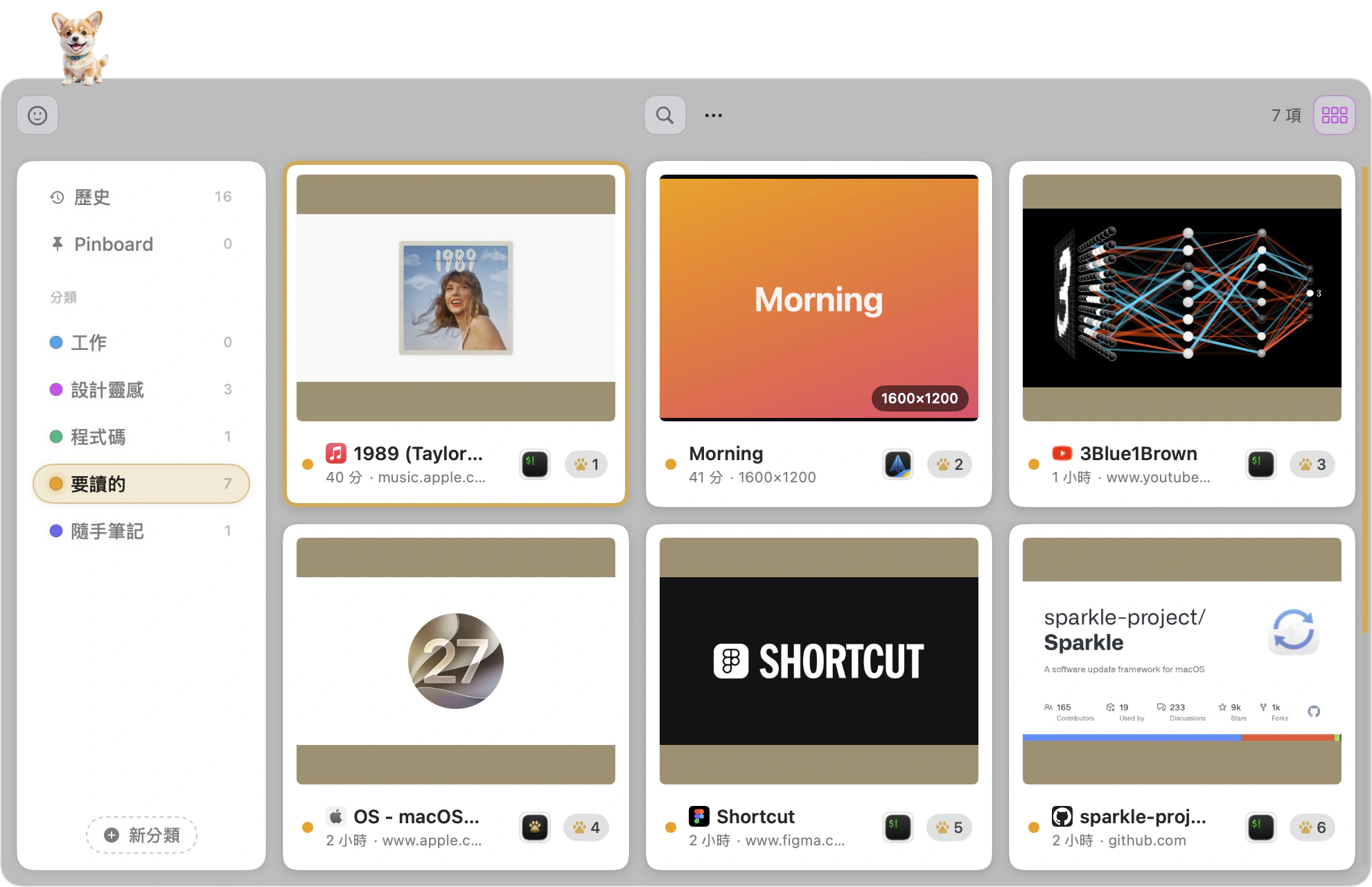
Hit Space and the video is right there
You saved a video to watch later, and one tap starts it playing. Full screen, with nothing trying to pull you somewhere else. No recommendations down the side, no comments, none of that. Just the video and you.
- Other sites load as a real page, in a private session that keeps no cookies
- With a preview open, arrow keys keep moving through your clips
- There’s a button up top if you’d rather open it in your browser
QR codes get decoded, not displayed
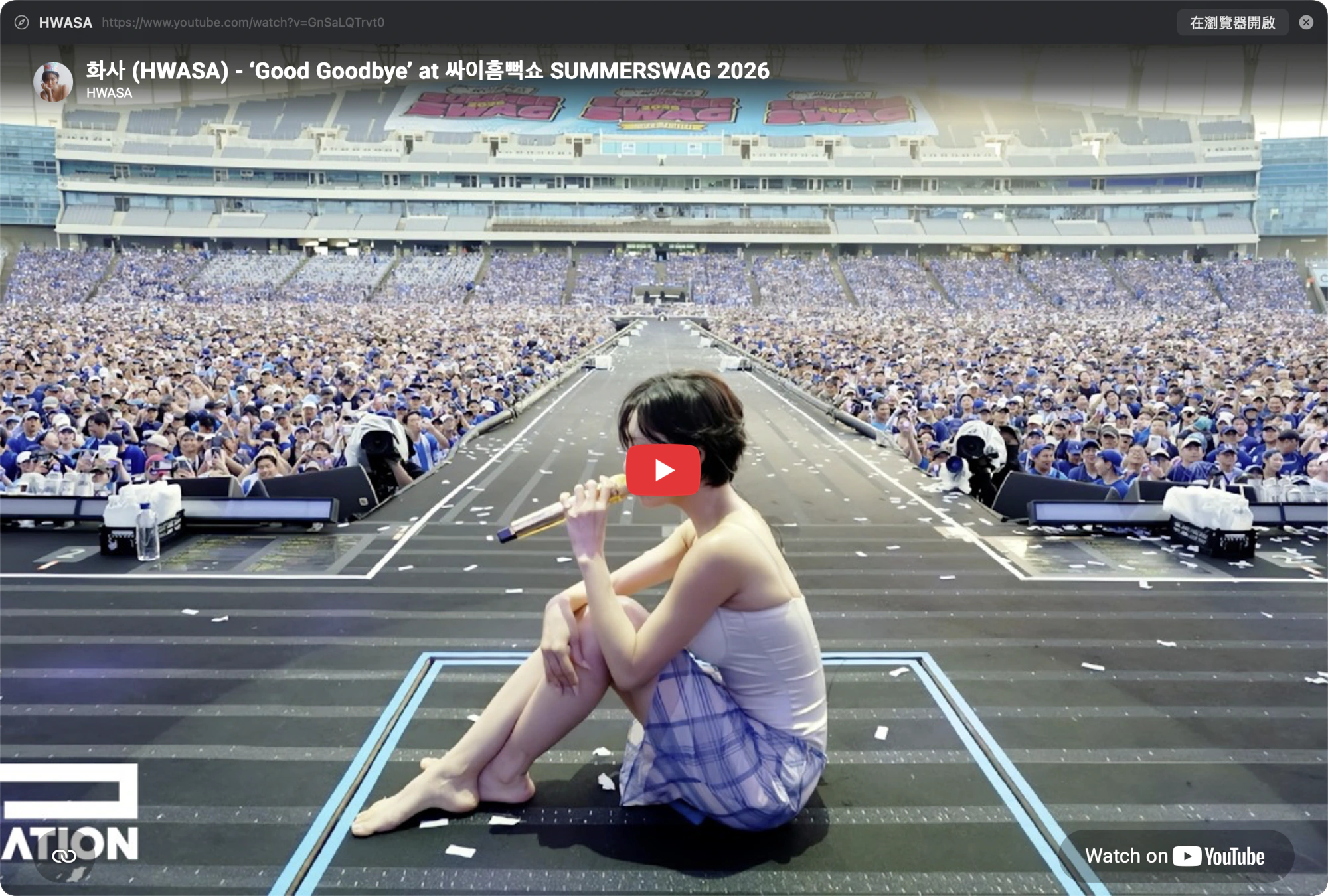
Copy an image with a QR code in it, press Space, and what you see isn’t the image. It’s what the code points to, so a URL opens as a page, a WiFi code lists the credentials.
- Recognition happens on device. The image goes nowhere
- No more holding your phone up to your own screen
- The shot below is real: that QR code contains the TieTie website
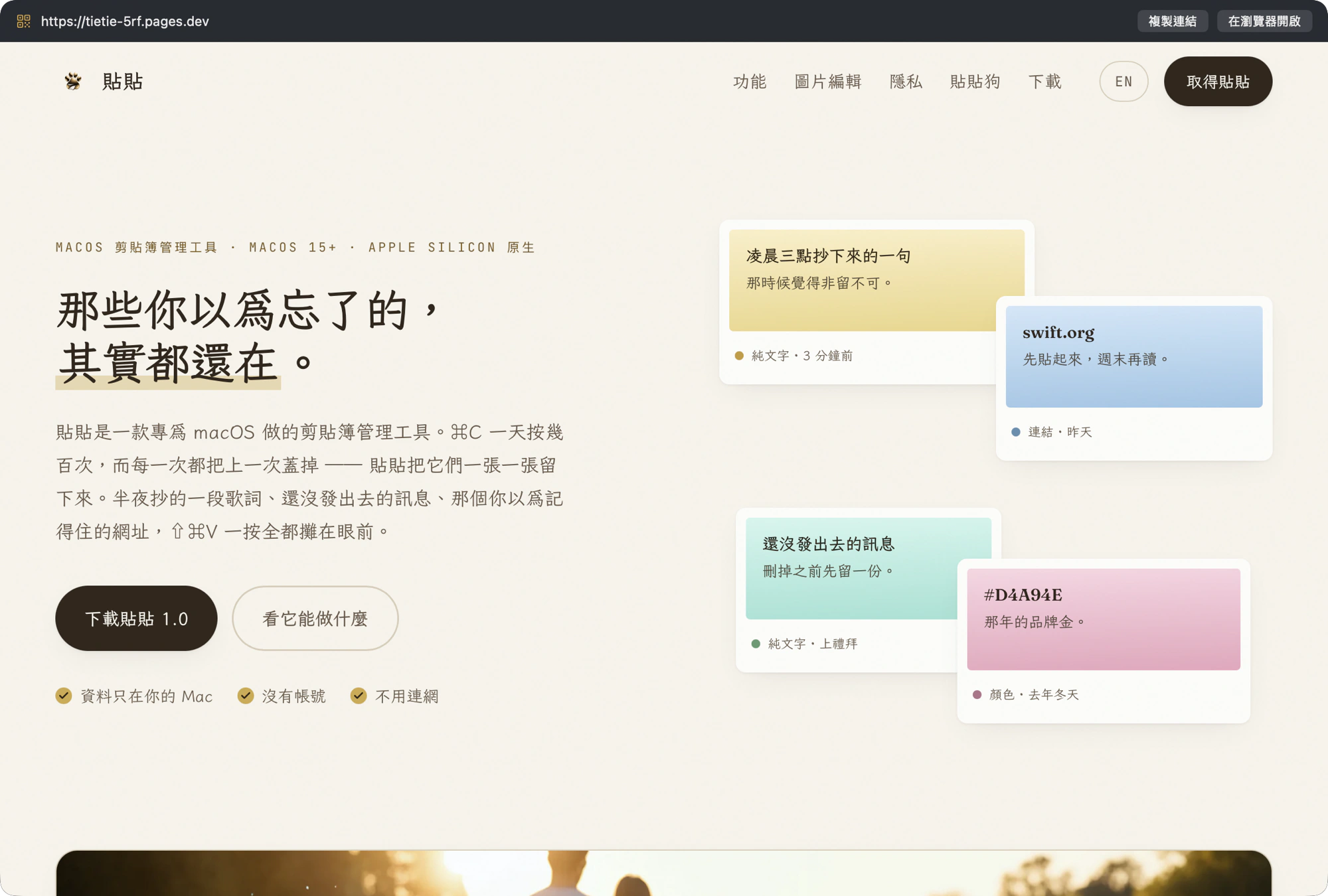
Two shapes. Pick whichever fits.
Either way the panel doesn’t steal focus from the app you were in, so your cursor stays where it was and pasting goes right back there.
TieTie window
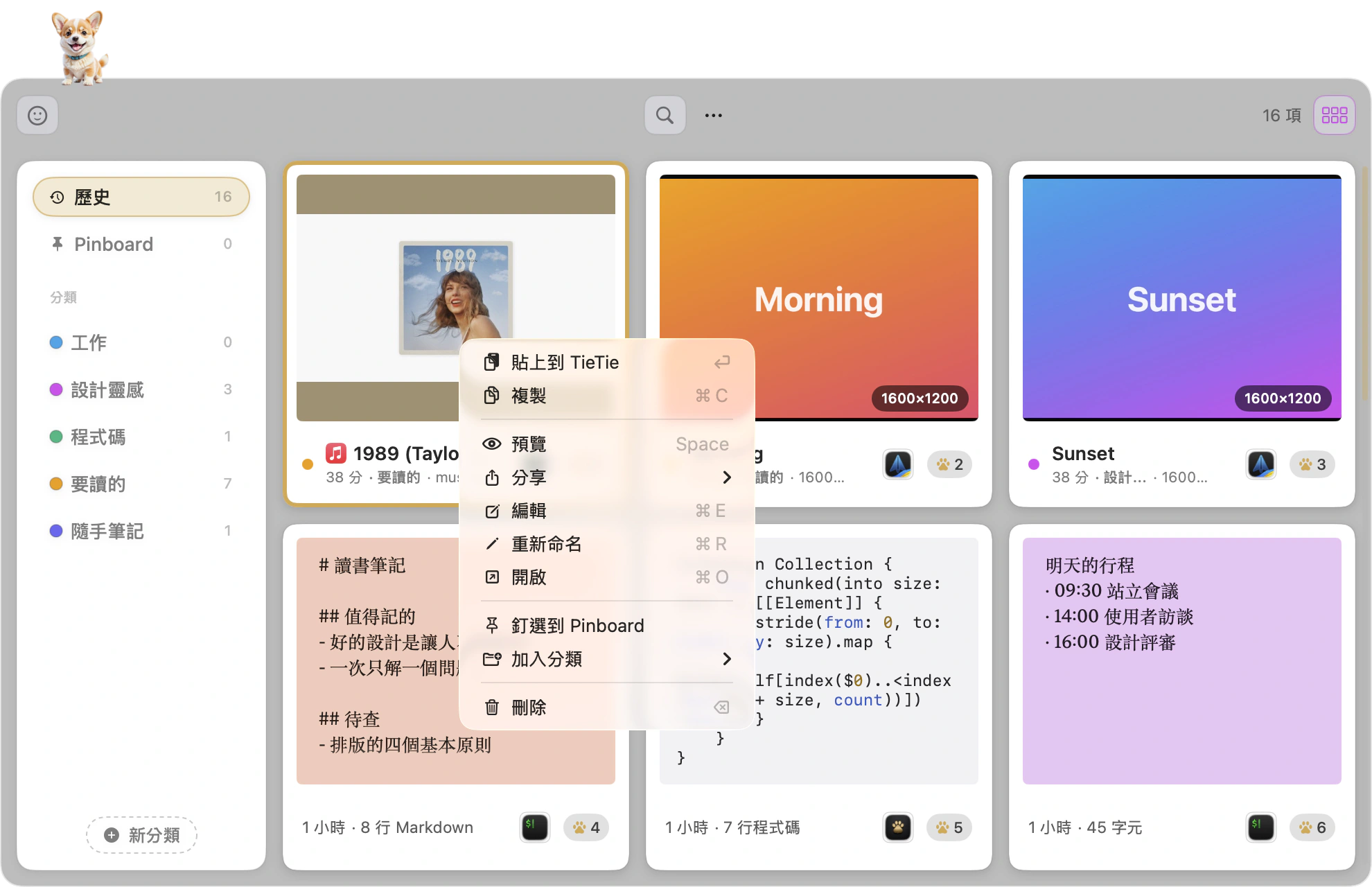
A floating window in the bottom right. Categories run down the left, and the cards sit in a 3-by-2 grid you scroll vertically. This one works better once you have a lot of categories, since you can see all of them and their counts at a glance.
- Square cards, fixed at 250pt
- A gold scroll indicator on the right edge that fades once you stop
- The dog peeks over the top left corner, and yes you can turn that off
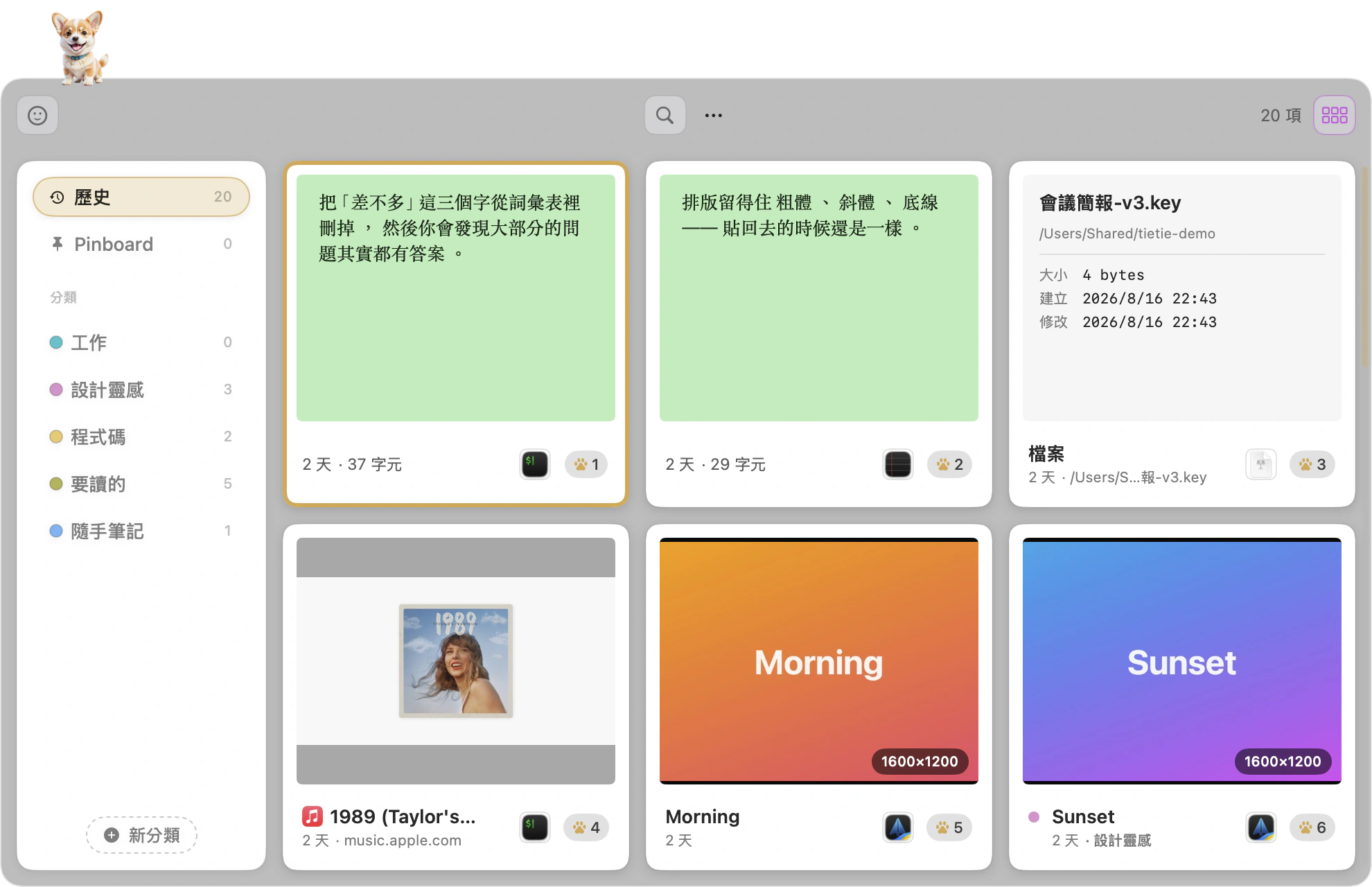
Classic bar
A full-width strip along the bottom of the screen, cards flowing sideways in one row. Faster for scanning the last few things you copied, and it doesn’t cover the area you’re working in.
- Scroll wheel and trackpad both scroll horizontally
- It stops wherever you stop, no snapping to a grid
- Cards can go compact so more of them fit on screen. That switch only exists for the classic bar. Cards in the TieTie window stay at 250

Dark mode is not the light colors flipped
Dark mode isn’t the light colors inverted. The eight note colors, the card shadows and the divider lines each have their own values per appearance. A faint black shadow on a dark surface is no shadow at all, so the dark shadows are darker and wider.
- Follow the system, or lock it to light or dark
- It only changes TieTie, never your system setting
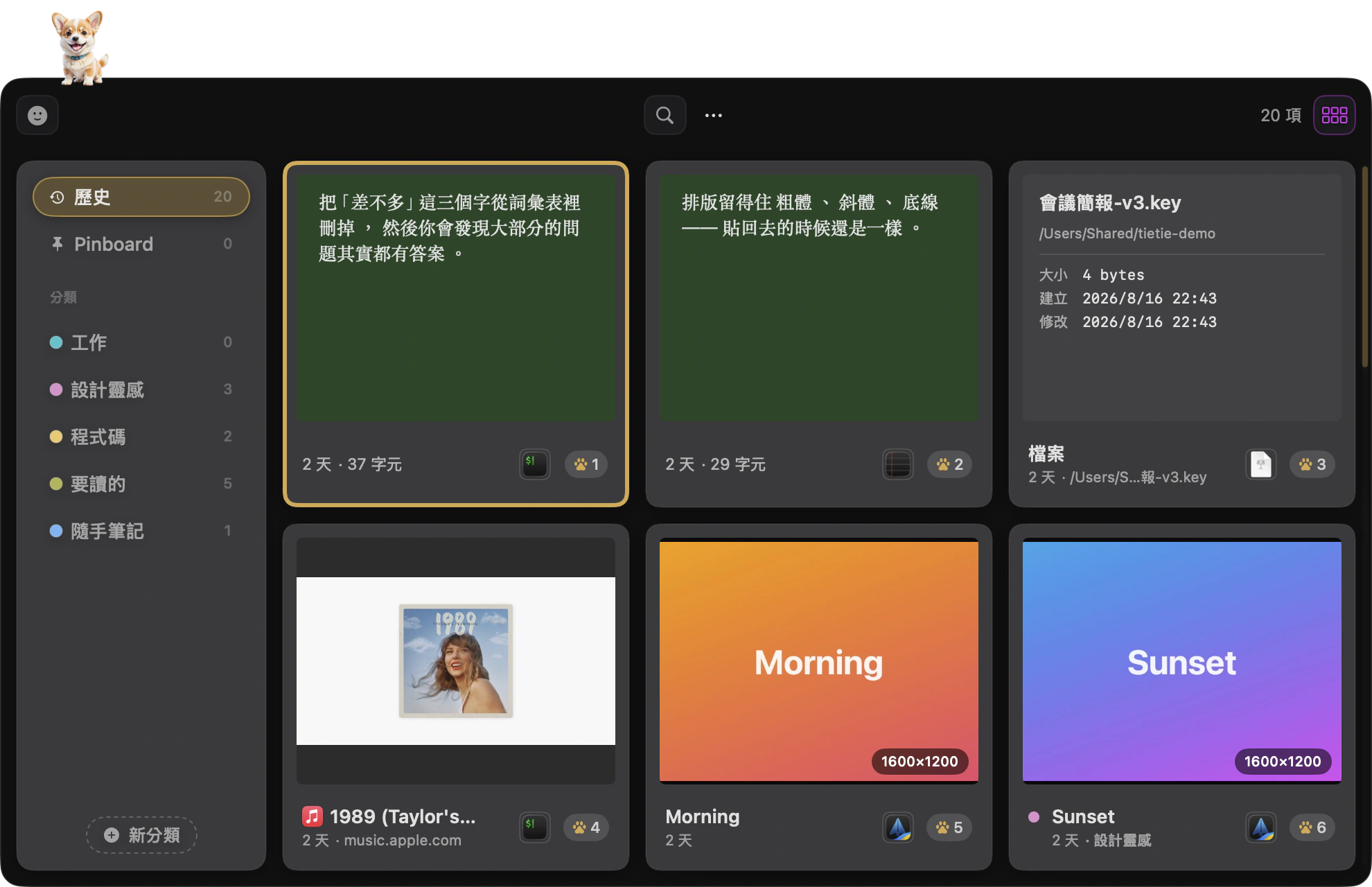
The classic bar goes dark too
Both layouts respect the appearance setting, so all four combinations work. The bar sits lower in dark mode and barely registers along the bottom of your desktop.

Cards come in two looks as well.
It’s a separate switch from the layout. One controls the shape of the panel, the other controls the cards. Try both and see which one feels more like you.
Polaroid
Your content gets developed like a photo, with a white margin underneath that says what it is and when it arrived. Two layers, that’s all. What you copied is the subject and everything else steps back onto the margin.
- The photo is the content itself. An image is an image, code keeps its syntax colors
- One line on the margin: title, time, and the real icon of the app it came from
- Cards you’ve filed get a small dot at the start of that line, in a color you picked
Index card
The kind of card that lives in a library drawer. A tab folds up along the top edge with the category on it, in the color you picked for that category. So when you scan a wall of cards you catch the color before you read the word. The content sits on ruled paper.
- The tab is only as wide as its label, so short ones stay short
- Those rules line up with the baseline of every line of text, not just lines drawn on for looks
- A dashed rule near the bottom fences off the footer: time, source, character count
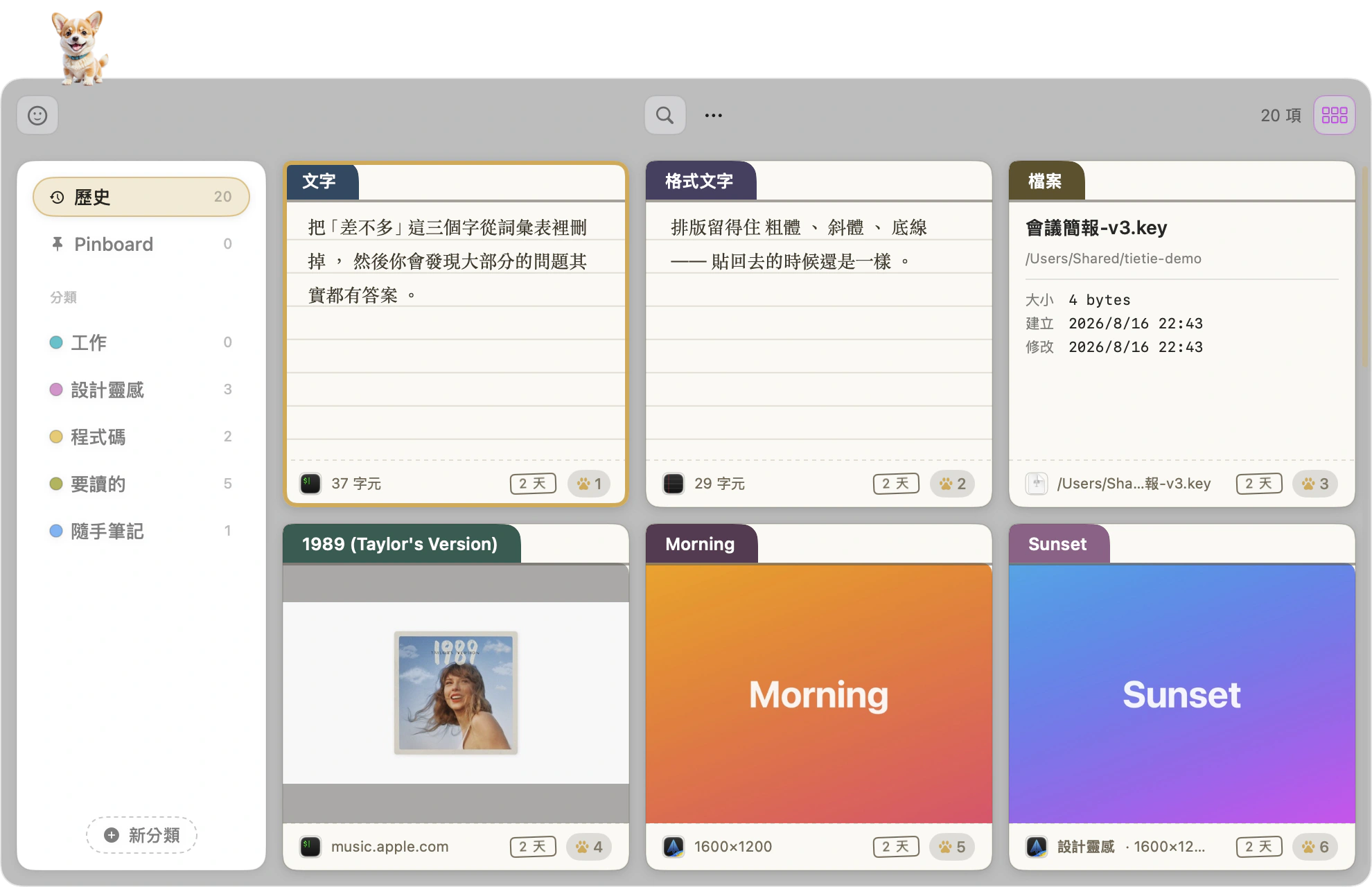
Daylight paper and midnight paper
By day the paper is warm off-white. At night it’s deep grey, and that’s a color we picked rather than white turned down. Reuse the light values after dark and it reads like someone taped white paper onto a black desk. Odd, and you can’t say why.
- Text on the paper flips between dark and light on its own, with contrast the system guarantees
- Index card paper runs warm, so even its border is warm. A cool grey frame on warm paper gives itself away
- Shadows got retuned too, since a card needs a deeper shadow to look lifted on a dark surface
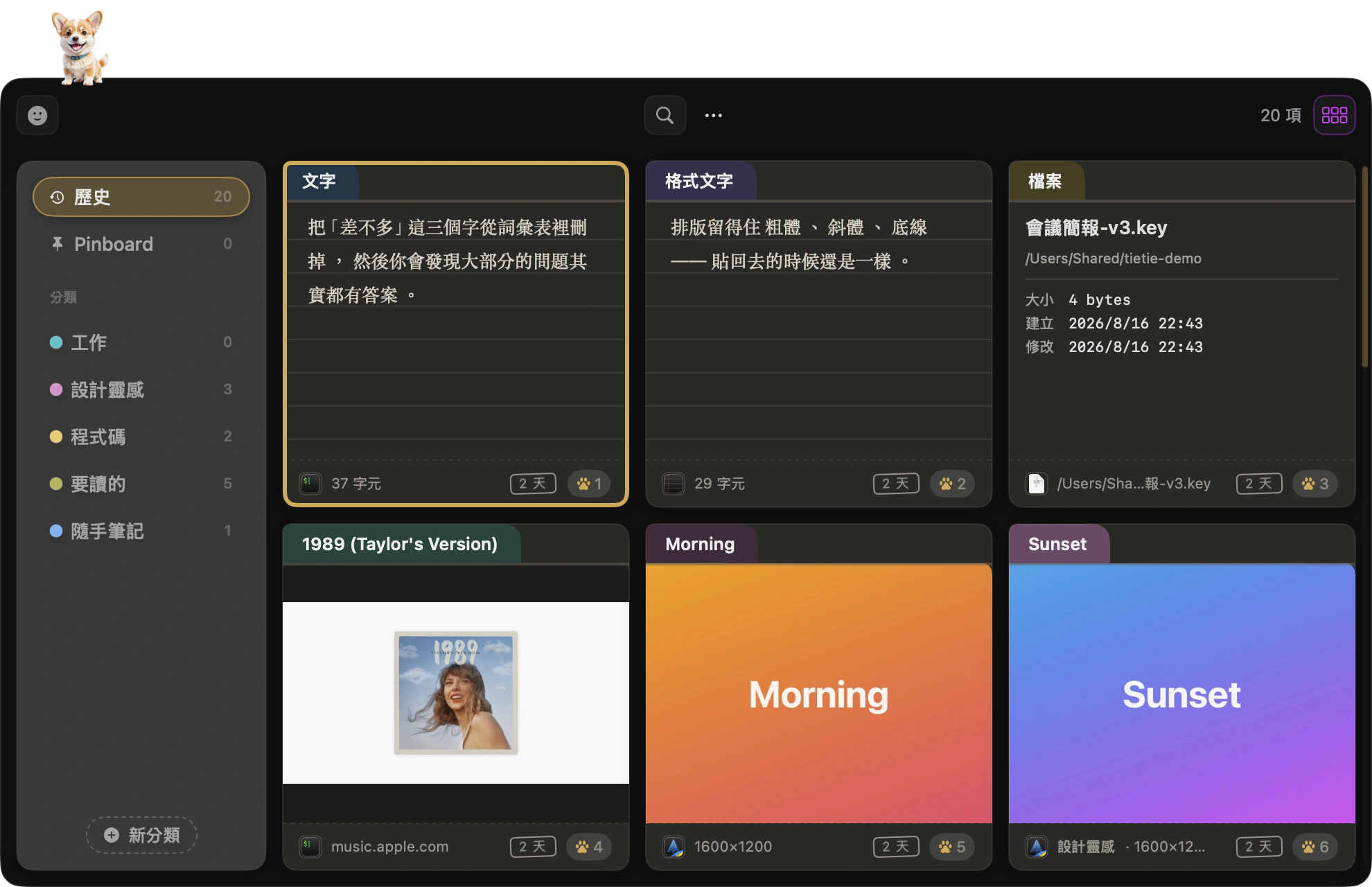
Two card styles, two layouts, mix them yourself
All four combinations work. Index cards along the bottom bar give you a row of colored tabs to scan. Polaroids in the corner window look like six photos you just laid out on the desk.
- Settings → Appearance → Card Style. Switch any time, it applies right away
- Switching styles doesn’t touch your data. You’re just changing the paper
What expires, what stays,
what gets filed away.
| Where | What it means | Does it get cleared |
|---|---|---|
| History | A stream. Newest first, and pasting or re-copying moves something back up | Yes, based on the item count and day limits you set |
| Pinboard | Pinned means kept, permanently | No. Clearing history doesn’t touch it |
| Categories | Filing. Make as many as you want, 16 colors to choose from | No. Deleting the category doesn’t delete what’s in it |
One clip can live in three places at once
The same item can sit in history, a category and the Pinboard at once. Edit it and TieTie asks whether to update all of them or just the one you’re looking at.
Drag onto a tab to file it
Drop it on a category to file it, drop it on Pinboard to pin it. Multi-select and drag the whole group if you want.
Select several cards, act on all of them
Hold ⇧ or ⌘ to grab multiple cards, then whatever you do next applies to the whole group: paste, pin, file, cut out the background, convert to an image, save, share. Pasting several joins them in the order you picked, and multiple images or files go out together the way Finder does it.
Deleted the wrong one? ⌘Z
It comes back, attachment included. Your selection stays where it was, which makes deleting several in a row painless.
Spread them out and put them in the order you want
The panel grows to almost the whole screen and lays every card out so you can drag them around: push the important ones to the front, group the ones that belong together. An insertion line shows where a card will land before you let go, and dropping it on a category tab files it right away.
- Card size is worked out for you. The goal is fitting on one screen, because you can’t drag onto what you can’t see
- With fewer cards than columns, it only lays out what’s there, so 1 to 3 sit centered instead of clinging to the top left
- Both layouts share the same arrange mode. Esc puts it away
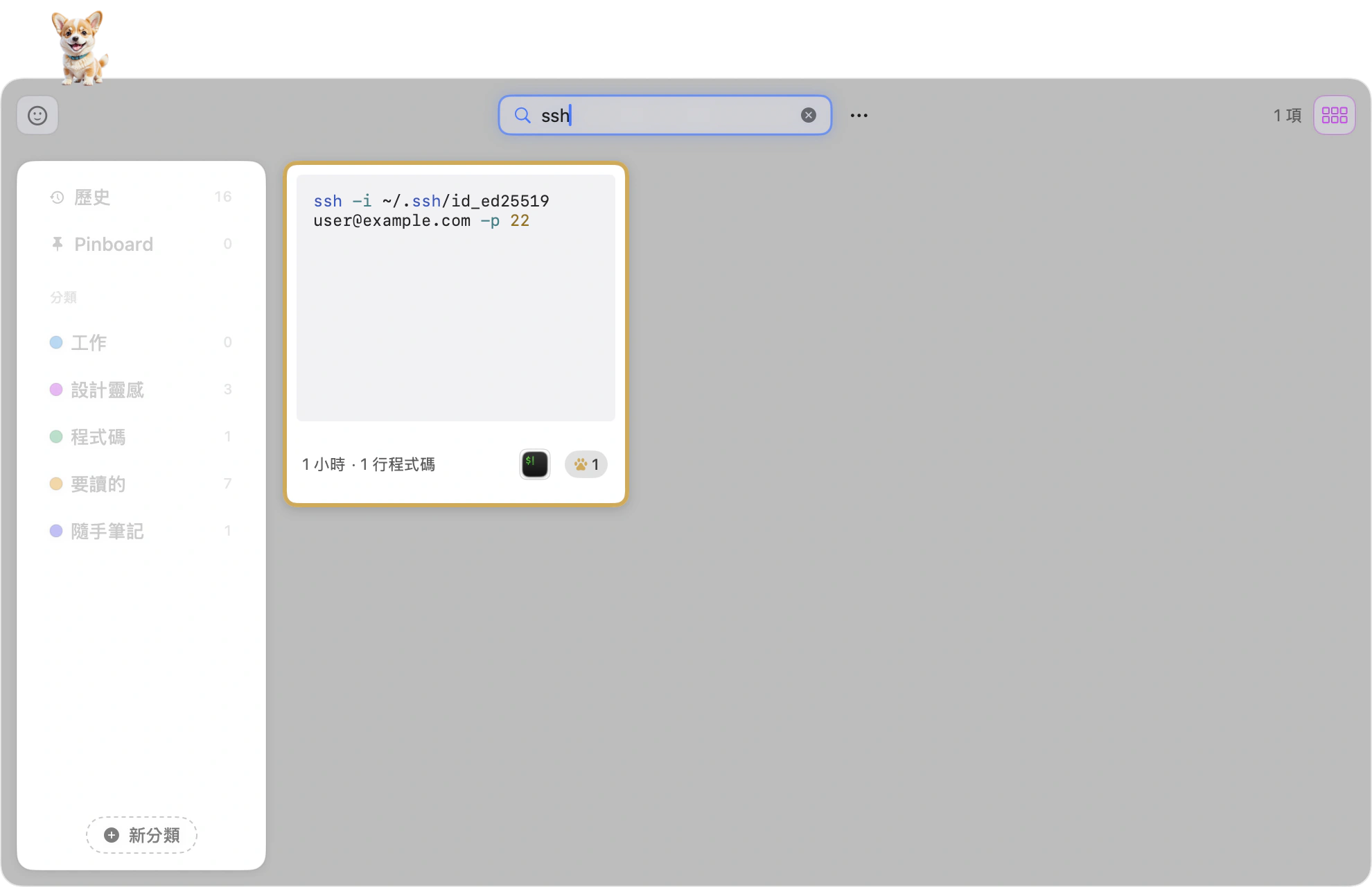
Start typing. That’s it.
No search icon to click, no category to pick first. With the panel open, typing means searching, and it covers everything at once.
- Thousands of clips, and results are there by the time you stop typing
- Traditional Chinese finds Simplified and the other way around
- Text inside images is read out and searched too, using the Vision text recognition built into macOS, the same one behind Live Text. It runs on Apple Silicon’s neural engine, so a screenshot gets read in the background the moment it lands and typing a few of those words finds it later. No network, nothing to turn on.
- type:image for images only, app:chrome for things copied from Chrome
- Chinese and Japanese input methods won’t trigger a search mid-composition
- Enter moves focus to the first result and the arrow keys take over
Hit Space and it opens.
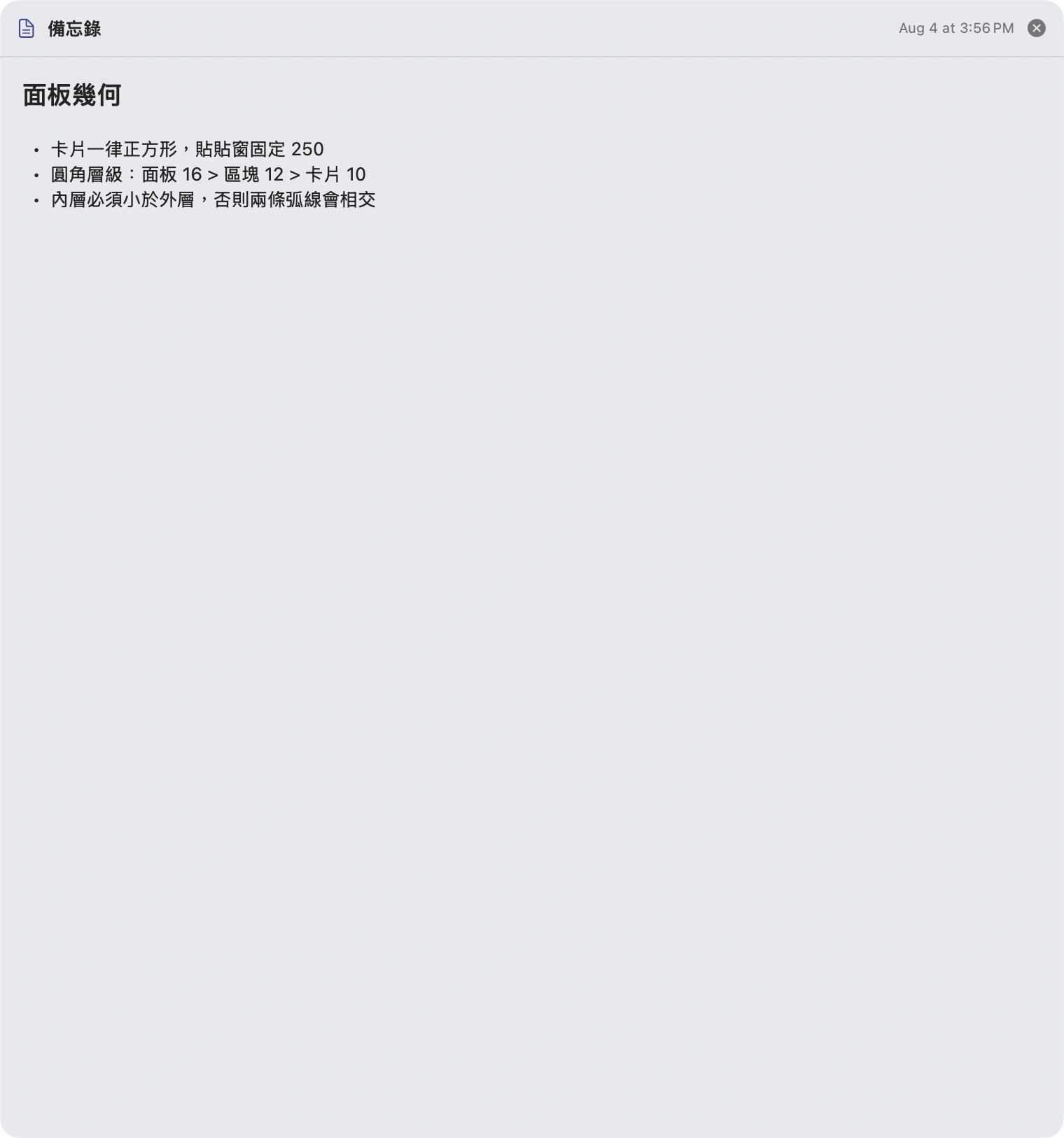
Light things stay light: a line of text, a color code or a small image pops up beside the card with an arrow pointing at it. Only heavy content gets a real window. Reading one sentence shouldn’t take over your screen.
| What it is | What Space gives you |
|---|---|
| Web pages | It really opens the page, and leaves no trace behind. YouTube and bilibili turn into a full-screen player |
| PDFKit paging, and the window opens at the document’s aspect ratio. A4 portrait gets a portrait window | |
| Video | mp4, mov and m4v play natively. mkv falls back to QuickLook |
| Markdown | Rendered, tables included |
| QR codes | Shows the contents, not the image. A link opens the page, a WiFi code gives you the credentials |
| JSON | A collapsible tree. Right-click to copy any subtree |
| CSV / TSV | Laid out as a real table |
| Office files | QuickLook handles them, window sized to the thumbnail |
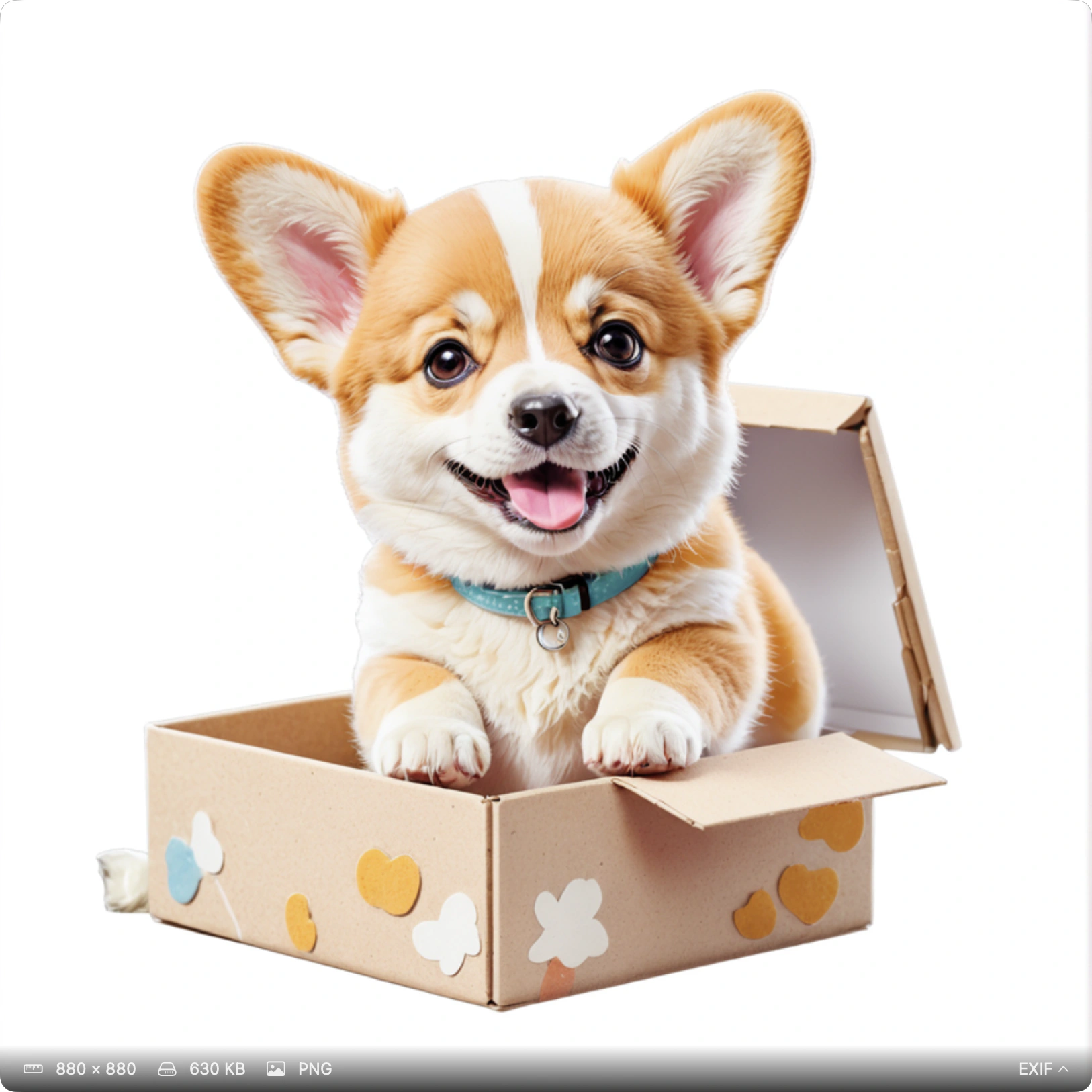
Images open at their own proportions
Not crammed into a fixed frame with black bars around it. The window takes the shape of the image, so a square photo gets a square window and a tall one gets a tall window.
- An info bar underneath shows dimensions and file size, with EXIF you can expand
- Zooming in stays sharp, because it opens the original and not the thumbnail
- Light content like text or a color code skips the big window and pops up beside the card
With a preview open, the arrow keys keep moving through your clips and the window stays put. Much faster than opening and closing it one at a time.
Hands stay on the keyboard.
| Key | What it does |
|---|---|
| ⇧⌘V | Show or hide the panel. Global, and you can change it |
| Return | Paste into the app you came from |
| ⇧Return | Strip formatting, then paste |
| ⌘1–⌘9 | Quick-paste the first nine. Hold ⌘ and each card shows its number |
| ⇧⌘C | Paste Stack. Copy a series, then hit ⌘V repeatedly to lay them down in order |
| Space | Preview on or off |
| ⌘E | Edit. Text opens inline, images open the editor |
| ⌘N | New text note, typed right here |
| ⌘R | Rename in place |
| ⌘S | Save an image out as a file |
| ⌘O | Open the link or file |
| ⌥⇥ / ⌘←→ | Switch categories |
| ⌘Z | Undo the delete you just did |
Drag out and get a real file
Drop onto Finder and it lands in the matching format: Markdown becomes .md, JSON becomes .json, a link becomes .webloc. Not one of those .textClipping files you have to open to identify.
Drop into a text field and it’s still text
Same gesture, different result depending on where it lands. Into Pages it’s formatted text. Onto the desktop it becomes a file.
Convert Chinese as you paste
Right-click any Chinese clip to paste it as Simplified or Traditional. The original stays as it was.
Copy without pasting
Sometimes you just want it back on the clipboard, not pasted for you. There’s a setting for that.
Not only what you copied elsewhere
⌘N opens a new text note to type into, and ⌘E edits anything already saved. Jotting down a phone number or a line you’ll need in a minute doesn’t need a separate notes app.
Opens on the display you’re using
With an external monitor, the panel appears on whichever screen your mouse is on. It won’t jump to the main display and leave you hunting. Same for previews and the editor.
That song, and the day it belongs to.
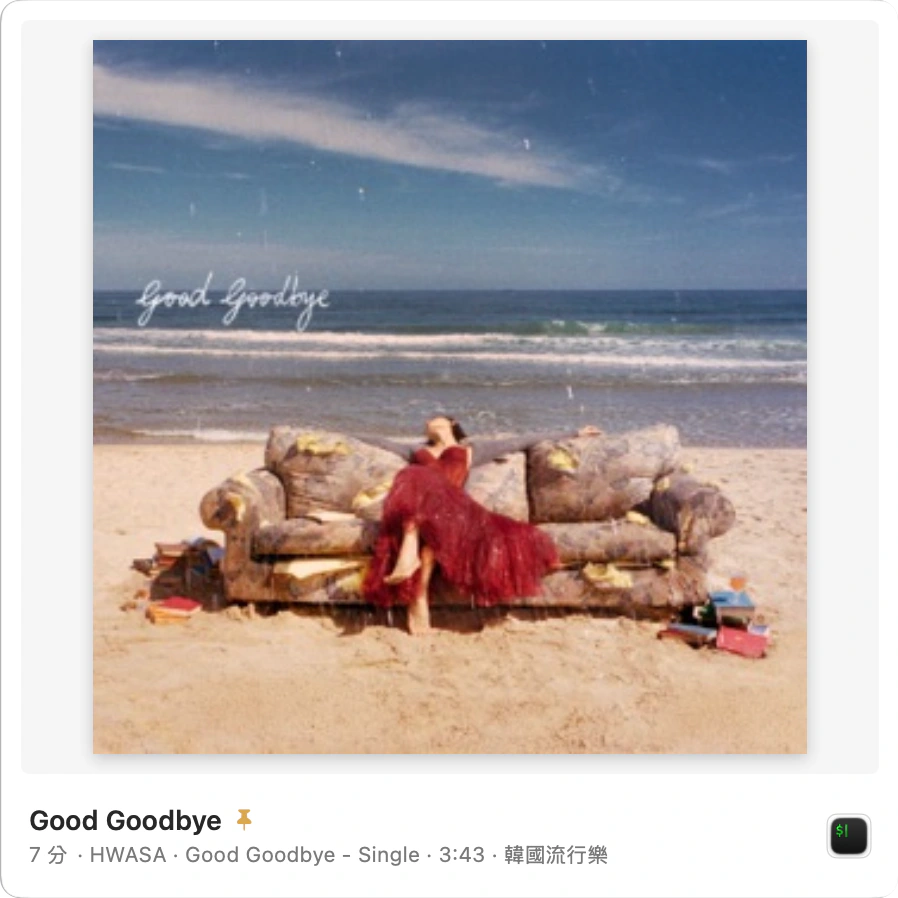
Copy a track in Music.app and TieTie doesn’t just get a line of text. It knows this is a song, so the album art, artist, album and length all land on one card.
⌘O takes you back to it
Find the card, press ⌘O, and Music.app jumps to that track. No copying the title out and searching for it again.
- The right-click menu has “Open in Apple Music” too
- It opens Music.app, not the web player. That difference hides in the first few characters of the URL, and we learned it the hard way
Send it to a friend and the link tags along
The last line you paste is that track’s Apple Music address. Whoever gets it can tap straight through, so you don’t go hunting for the link yourself.
- It’s a plain line of text, so it survives a terminal or a code editor
- Chat apps and note apps turn it into a tappable link on their own
- Search picks it up too. Look for
music.apple.comand every song shows up
Text you saved is still yours to change
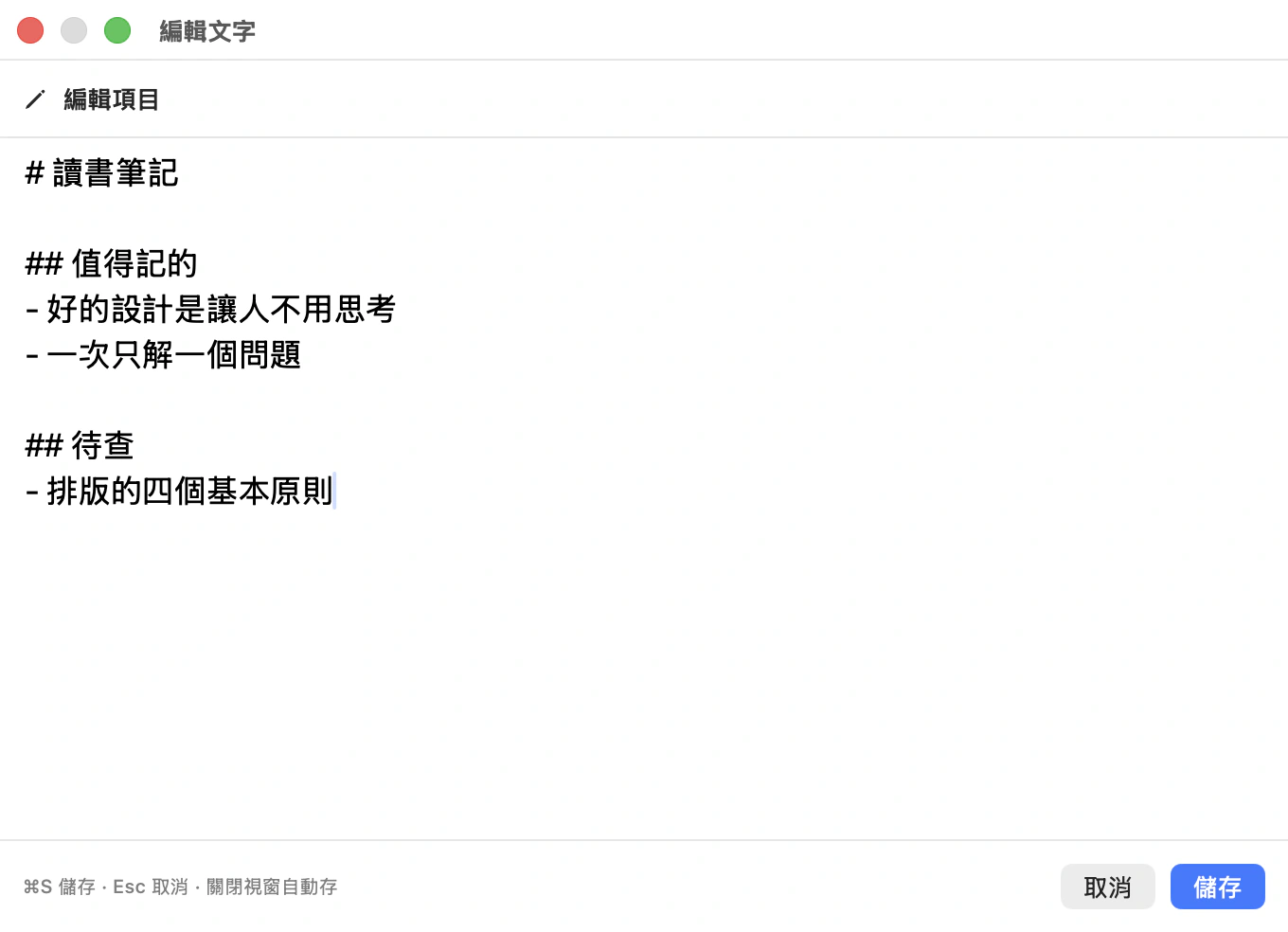
⌘E opens it for editing. Save with ⌘S, or just close the window and it saves itself, so getting interrupted halfway costs you nothing.
- Esc cancels and the original stays as it was
- On an image card ⌘E opens the image editor instead. One key, two things
- A typo in an address you copied, one parameter in a snippet. No need to delete and copy it all over again
- Format it only when you want to: ⌘B for bold, ⌘I italic, ⌘U underline. The card becomes rich text the moment you press one of those; if you just wanted to jot a line, nothing changes and it stays plain text
The small things, also handled.
Emoji picker
Need an emoji without opening the system panel? One click and it’s in.
Usage stats
How much are you actually copying? Open it and find out.
Backup and restore
Export everything to a single file, or let it back up daily on a rotation. Moving to a new Mac takes one file.
Three languages
English, Traditional Chinese, Simplified Chinese. The whole interface, not half of it.
Every shortcut is yours
Click to record a new one. Conflicts get flagged on the spot, and changes take effect without a restart.
Sounds, if you want them
Two notes up when you copy, two notes down when you paste. Or off.
Need an emoji? Skip the system panel
Seven categories plus your recents. Click one and it goes straight into the app you were in. It doesn’t enter your history and the panel stays open, so clicking a few in a row works fine.
- In the classic layout it sits in the first slot of the card row, and the toggle sticks
- In the TieTie window it’s a floating panel instead, and closing the panel closes it
- Recents can be cleared in one click

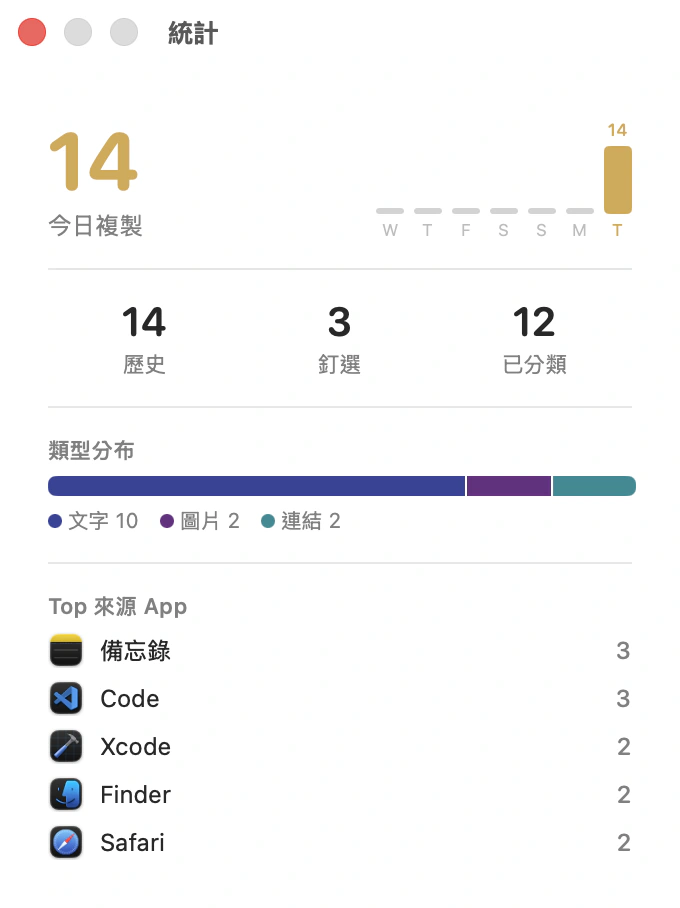
How much are you actually copying
Open it and find out. Today’s count, how history and pins break down, the split by type, and which apps you copy from most.
- A 7-day bar chart with today highlighted in gold
- Top 5 source apps, with their real app icons
- A snapshot from when you opened it, so nothing moves around while you read
It follows your habits, not the reverse.
Seven tabs, and everything you’d want to change is on one of them. Here’s what each one holds.
| Tab | What you can change |
|---|---|
| General | Interface language, launch at login, sound effects, paste behavior (back into the app or just onto the clipboard), troubleshooting (debug mode, export a diagnostics bundle) |
| Appearance | Light and dark (follow the system, always light, always dark), panel layout, card style, show the dog, compact cards, hover effects, and one master switch for animation |
| Shortcuts | Every hotkey is yours. Click to record, conflicts get flagged on the spot, and changes take effect without a restart |
| Data | History item limit and retention days, clear history, and where the data lives (you can open the folder from here) |
| Backup | Export and restore by hand, plus daily automatic backups (destination folder and how many to keep). The result shows up right under the button |
| Updates | Automatic update checks on or off, when it last checked, and a Check Now button |
| Privacy | Hide during screen sharing, link previews on or off, strip tracking parameters, skip confidential clips, exclude specific apps |
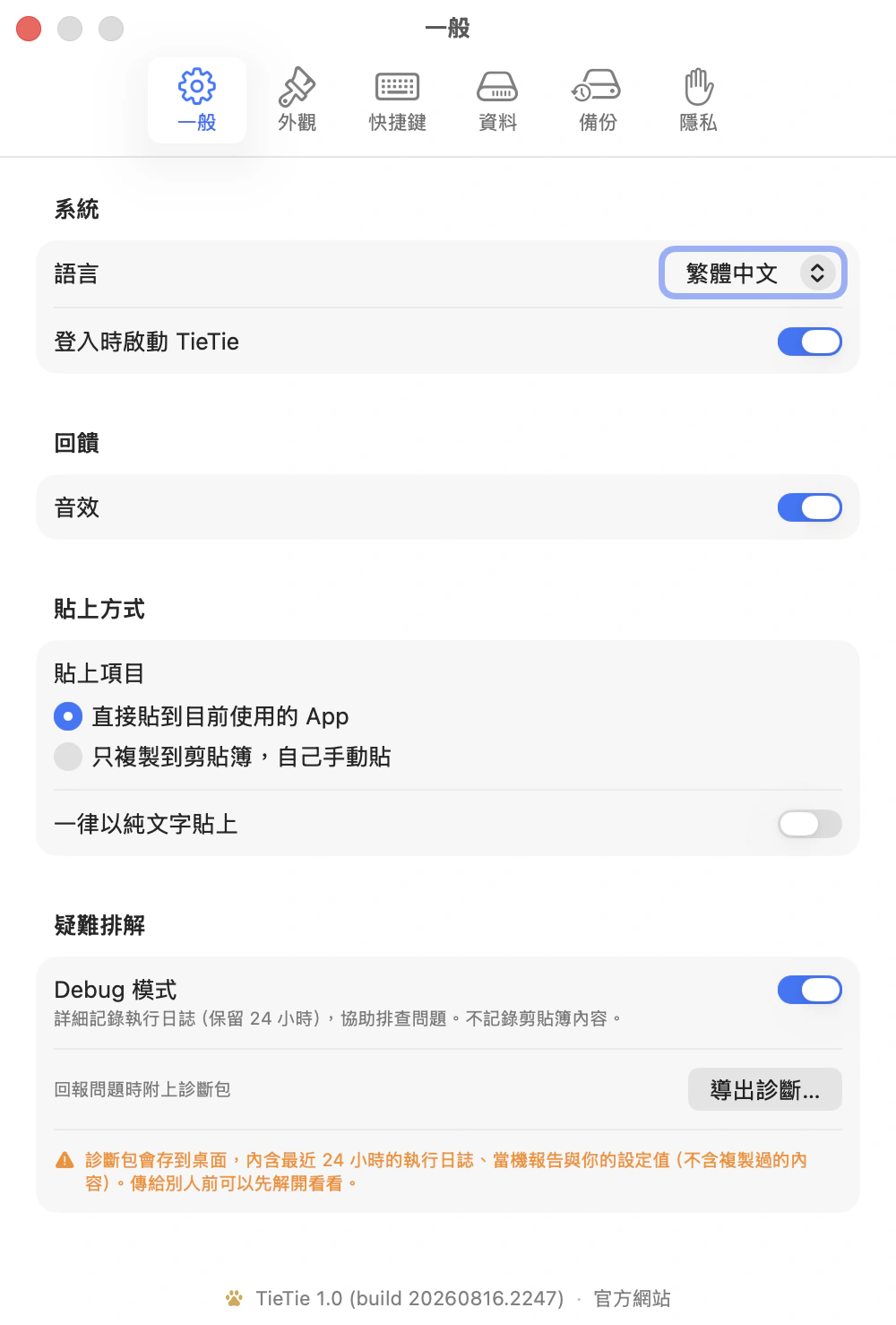
Two switches are mutually exclusive: “compact cards” only shows up in the classic layout, and “show the dog” only in the TieTie window. Each belongs to one layout, and listing both would suggest the other has it too.
No amount of reading beats one ⇧⌘V.
TieTie 1.0 · macOS 15 and up · native on Apple Silicon